Optimize Your Network: A Guide to TheWebStats Internet Speed Test
A fast, stable connection is no longer a luxury—it is a daily necessity. Whether you are streaming high-definition video, joining virtual business conferences, or playing competitive online games, network lag can derail your entire workflow. While many online utilities claim to map your connection, TheWebStats Internet Speed Test offers a direct, lightweight approach to diagnosing your true web performance.
Instead of overwhelming users with confusing animations, the platform delivers clean, accurate diagnostics built around functional, real-world performance tracking.
Core Performance Metrics Tracked
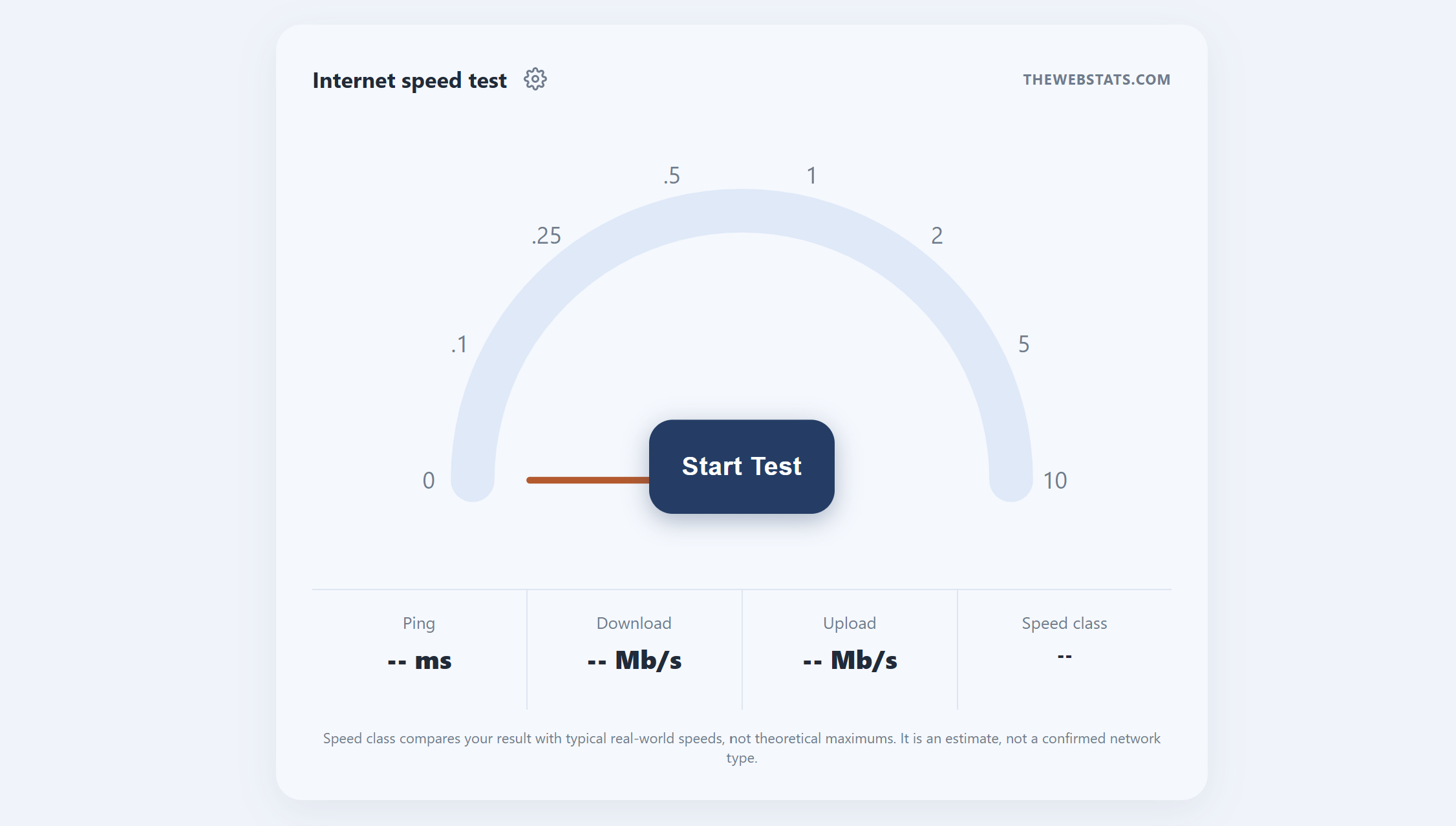
When you initialize the diagnostic tool, it runs an automated simulation that evaluates three foundational pillars of your broadband health:
- Ping (Latency): Measured in milliseconds (ms), this tracks the reactive speed of your connection, identifying how fast data travel signals round-trip between your machine and the host server.
- Download Speed: Measured in Megabits per second (Mb/s), this calculates the rate at which data is transferred from the internet down to your local device.
- Upload Speed: Also tracked in Mb/s, this gauges the speed at which your local setup pushes files, media, and voice signals out to external servers.
Understanding the "Speed Class" Rating
What sets this tool apart from generic options is the inclusion of a specialized Speed Class indicator. Rather than just spitting out arbitrary numerical values, the utility automatically compares your data points against typical real-world speeds rather than theoretical, laboratory maximums advertised by internet service providers (ISPs). This categorization provides users with a realistic assessment of what actions—like multi-device 4K streaming or casual web browsing—their current infrastructure can reliably handle.
Advanced Customization Features
Power users seeking highly specific data environments can adjust their diagnostic parameters directly via the integrated Test Settings panel. The platform allows for precise structural alterations:
| Configurable Setting | Practical Function |
|---|---|
| Download Duration | Manually sets the time window (in seconds) dedicated to testing baseline file retrieval. |
| Upload Duration | Adjusts the active runtime constraints allocated for testing outbound upload transfers. |
| Result Smoothing | Filters out random spikes using best-of reading metrics to deliver a consistent average calculation. |
Once a diagnostic run completes, users can seamlessly download a dedicated plain text report (.txt) or copy the precise diagnostic connection logs directly to their clipboard for quick troubleshooting with IT support agents.
Would you like me to write a step-by-step guide on how to troubleshoot a slow speed test result, or should we expand this article with a section comparing Fiber, Cable, and 5G average speeds?